If your Roborock Q7 M5+ robot vacuum isn’t connecting to WiFi, it can be frustrating and hinder your cleaning schedule. Fortunately, most connectivity issues are fixable with some straightforward troubleshooting steps. This guide provides clear, safe, and practical instructions to help you restore your vacuum’s WiFi connection quickly and effectively.

Get cleaning gear delivered free — and shop member deals
- Fast, free delivery on millions of items
- Access to Prime Big Deal Days deals on October 6–7
- Prime Video, Amazon Music and more included
Before you begin, ensure your WiFi network is functioning properly, and your mobile device is connected to the same network you want your vacuum to operate on. Having your vacuum’s model information and app details handy will streamline the process.
Key Takeaways
| Check WiFi Signal | Ensure your WiFi signal is strong and stable near the vacuum. |
| Restart Devices | Reboot your vacuum, router, and smartphone to resolve temporary glitches. |
| Update Firmware/App | Keep the vacuum firmware and app updated for optimal performance. |
| Reconfigure WiFi | Re-enter WiFi credentials in the Roborock app to reconnect. |
| Reset Network Settings | Reset network settings on your vacuum if persistent issues occur. |
Step 1: Verify WiFi Network Stability
- Ensure your WiFi network is active and has a strong signal near your vacuum’s location.
- Use your smartphone or computer to test internet access on the same network.
- If your WiFi is unstable, restart your router and wait for it to fully reconnect before proceeding.
Step 2: Restart Your Devices
- Power off your Roborock Q7 M5+ and unplug your router for 30 seconds.
- Turn on the router, wait until it fully reconnects, then power on the vacuum.
- Restart your smartphone as well to refresh the app connection.
Step 3: Reconnect via the App
- Open the Roborock app on your device.
- Navigate to the device settings and select ‘WiFi Settings’ or similar.
- Follow prompts to re-enter your WiFi network name and password carefully.
- Ensure you select the 2.4 GHz band if your network is dual-band, as many vacuums only support this frequency.
Step 4: Update Firmware and App
- Check for app updates in your app store and install any available updates.
- Within the Roborock app, go to device settings and check for firmware updates for your vacuum.
- Complete updates and restart your device if prompted.
Step 5: Factory Reset and Reconfigure
- If the above steps fail, perform a factory reset on your vacuum (refer to the user manual for instructions).
- Reinstall the device in the app and re-enter WiFi credentials carefully.
- Test the connection again to confirm successful setup.
The Products in This Guide

roborock Q7 M5+ Robot Vacuum and Mop
- ✔ Weight: 7.9 kg
- ✔ Dimensions: 350mm x 350mm x 96mm
- ✔ Warranty: 1 year

4 Pack Washable Filter
- ✔ Filter Type: HEPA
- ✔ Reusability: Yes
- ✔ Material: True HEPA
roborock Q7 M5+ Robot Vacuum and Mop
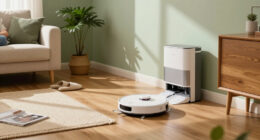
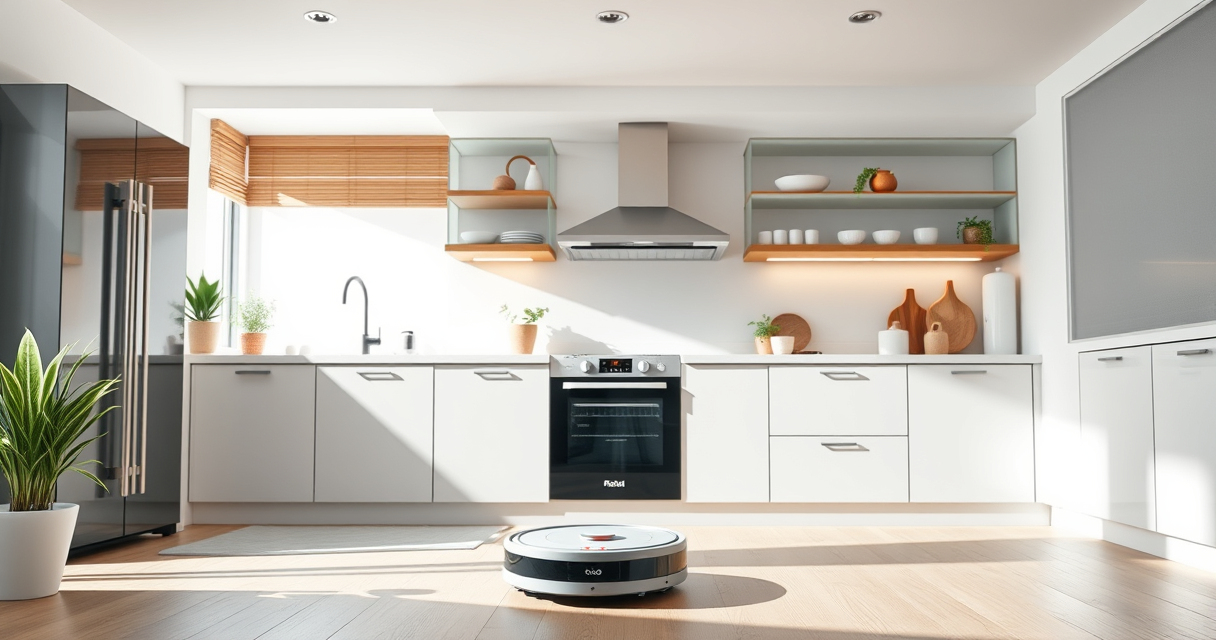
The Roborock Q7 M5+ Robot Vacuum and Mop features PreciSense LiDAR Navigation for precise mapping, powerful 10000Pa suction, and a self-emptying dust bag that lasts up to 9 weeks. Its app control makes it easy to schedule and monitor cleaning from anywhere.
Pros:
- Strong suction power
- Long-lasting self-emptying
- Advanced navigation
- Pet hair handling
Cons:
- Higher price point
- WiFi connectivity can be sensitive
- Requires compatible app setup
Best for: Pet owners and busy households seeking reliable cleaning
Not ideal for: Users with unstable WiFi networks or less tech-savvy users
Bottom line: A powerful, smart vacuum with excellent features, but ensure your WiFi is stable for seamless app control.
4 Pack Washable Filter
This 4-pack washable HEPA filters ensure your Roborock vacuum maintains optimal suction and filtration, especially important if you experience frequent filter clogging or need replacements.
Pros:
- Reusable and washable
- Effective filtration
- Easy to install
- Cost-effective over time
Cons:
- Requires regular cleaning
- Not OEM but compatible
- Limited to specific models
Best for: Maintaining high suction and air quality
Not ideal for: If you prefer OEM parts or have different model variants
Bottom line: A reliable, washable filter set that helps keep your vacuum performing at its best.
Frequently Asked Questions
Why isn’t my Roborock vacuum connecting to WiFi?
Common causes include weak WiFi signals, incorrect network credentials, outdated firmware, or app issues. Follow the troubleshooting steps to resolve these problems.
Can I connect my Roborock to a 5 GHz WiFi network?
Most Roborock models, including the Q7 M5+, support only 2.4 GHz WiFi networks. Ensure your router broadcasts a 2.4 GHz signal and connect to that.
How do I reset my Roborock’s network settings?
Refer to your user manual for the specific reset procedure, typically involving holding certain buttons on the device or via the app settings.
What should I do if re-entering WiFi info doesn’t work?
Try performing a factory reset on the vacuum, restart your router, and ensure your app and firmware are updated before attempting to reconnect again.
Getting Back to a Spotless Home
WiFi connectivity issues with your Roborock Q7 M5+ are common but usually straightforward to fix. By systematically verifying your network, restarting devices, updating firmware, and reconfiguring settings, you can restore full app control and enjoy the full benefits of your smart vacuum. Patience and careful steps will help ensure a smooth recovery process, keeping your home clean and your device functioning optimally.
Affiliate disclosure: As an Amazon Associate we earn from qualifying purchases. Prices and availability are accurate as of the time of publishing.
Halloween Picks
halloween
As an affiliate, we earn on qualifying purchases.